
An ear, a sleeve, a sticker
Brush over the part you want to move, erase stray paint, then adjust strength and speed. Try Wobble, Jiggle, Bounce, Sway, Jelly, or Pulse on the same area.
Small movements, made from your own image
Make an ear, a sleeve, or a soft shape wobble while keeping the rest of the image still. See actual exports below, then try the same image and settings in the free editor. Your images stay in your browser.
WobbleImage is an independent tool and is not affiliated with the original Purupuru Maker.
A real edit, from start to finish
Paint the pudding body while keeping the plate and background clear. The Jelly effect makes the selected area gently stretch and spring back.
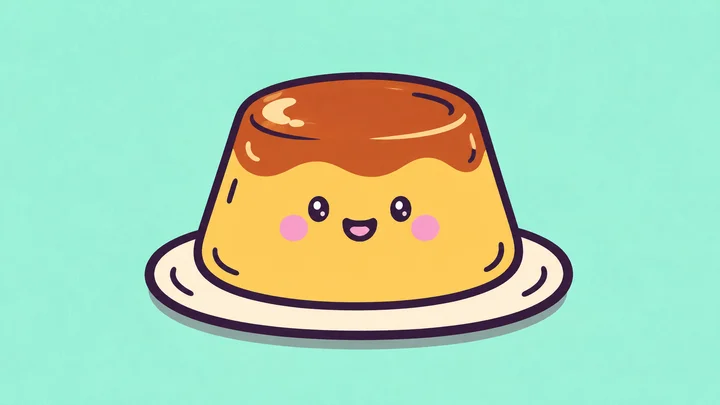
Use the existing pudding illustration as your starting image. Its rounded body makes the motion easy to see.
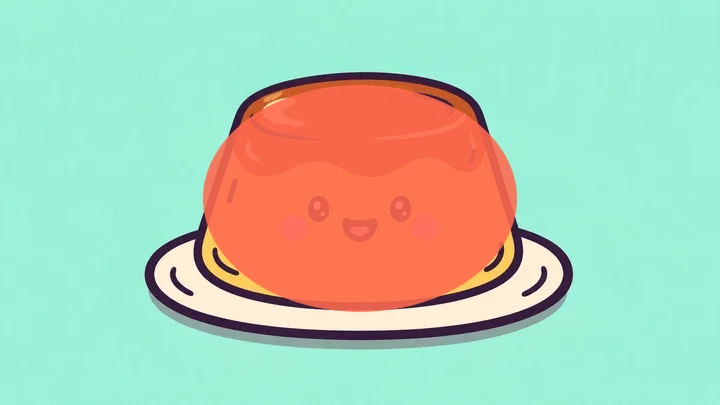
Paint the centre of the pudding body. Keep the plate and background outside the painted area.
Export a 3-second GIF with Jelly. This is the current editor’s local deformation, using the settings below.
Open this image with its painted area and settings already applied. Adjust the motion or repaint before exporting.
A real edit, from start to finish
Keep the face easy to read and put the movement in the raised paw. This example uses the Bounce effect on an existing illustration.
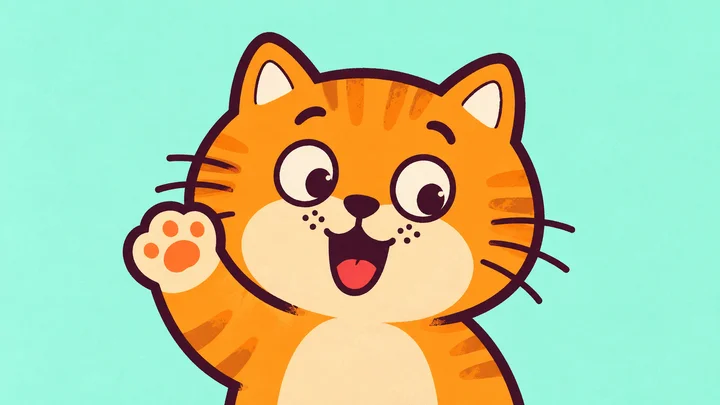
Start with the existing greeting illustration. The editor keeps the same face and expression.
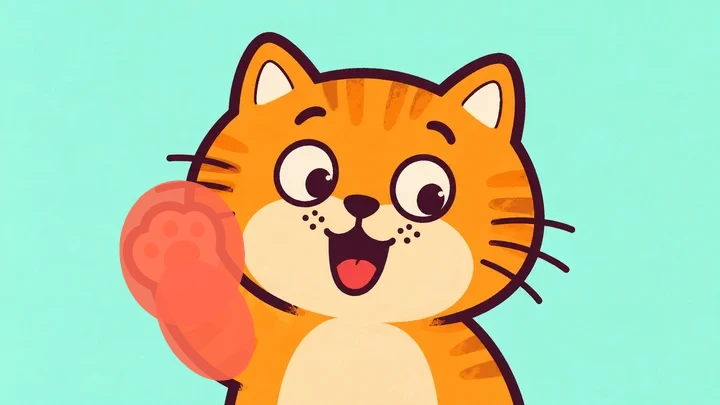
Paint the raised paw and the lower arm. Leave the eyes, mouth and ears unpainted.
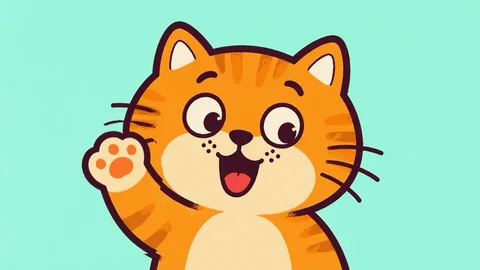
Export a 3-second GIF with Bounce. The small moving area keeps the greeting readable at a glance.
Open this image with its painted area and settings already applied. Adjust the motion or repaint before exporting.
Is this the alternative you need?
WobbleImage turns a selected area of one still image into a short loop. These are the jobs it is built for.
Brush over the part you want to move, erase stray paint, then adjust strength and speed. Try Wobble, Jiggle, Bounce, Sway, Jelly, or Pulse on the same area.
The motion stretches and shifts pixels from your image. It does not generate new artwork or fill in hidden parts. Leave faces, lettering, and hard edges unpainted when they need to stay readable.
The source image, painted area, preview, and exported file are processed on your device. You can use the editor for free without creating an account.
Recreate the pudding example
Start with the example above so the image, painted area, and settings are already in place. Then change one thing at a time to see what it does.
Paint the pudding body, including its face, as shown in the mask preview. Leave the plate and background unpainted. Erase over the eyes or mouth if you want those details to stay still.
Choose Jelly with strength at 64% and speed at 23%. Lower strength if the outline stretches too far; lower speed if the movement feels hurried.
Choose 3 seconds and export WebM to check the motion first. Export GIF when you need a looping image. Both files are created locally; GIF adds a conversion step.
Before you choose a file
A few practical limits keep the work manageable in a browser. Check these before starting a large image or a mobile edit.
For the next step in your project
Use ezgif when you want to resize, optimize, or convert an animation. Choose CapCut's web editor when the project needs a timeline, sound, text, and transitions. Their workflows serve different jobs from a painted wobble loop.
| Workflow | WobbleImage | ezgif | CapCut web editor |
|---|---|---|---|
| Best suited to | Make selected image areas wobble with a brush and six motion effects. | Create, edit, resize, optimize, and convert animated images. | Combine media, text, audio, effects, and transitions on a video timeline. |
| Where files are processed | Image, mask, preview, and export stay in your browser. | Some tools offer local processing; server mode uploads files. | The web workflow starts with sign-in and media upload, with cloud storage available. |
| Export workflow | Download a GIF or WebM loop. GIF exports at 15 fps; WebM is faster to export. | Choose a dedicated maker, editor, or converter for the animation format you need. | Export the edited video with format, resolution, and frame-rate settings. |
Comparison checked November 15, 2026.
Practical answers about matching an effect, protecting your artwork, and getting a usable export.
An exact match is not guaranteed. Motion settings and rendering can produce a different look. Play the examples on this page and try their presets to decide whether the movement fits your image.
No. The editor creates motion by locally deforming pixels from your imported image. It does not send that image to a generative model. Strong motion can still stretch details, so keep faces or lettering outside the painted area when they should stay still.
Yes. Paint only the area you want to move, then use the eraser to refine it. Start with a small area and modest strength. This gives you a local deformation, rather than a separately rigged body part with its own animation track.
Check whether the painted area touches the background or a detail that should stay still. Erase that overlap, lower the strength, and preview again. Sampling a still image can stretch nearby texture at the moving edges, so try a smaller area if the boundary remains distracting.
GIF adds a local conversion after the motion has been recorded. The first export also downloads the conversion files. Longer clips and larger working images take more time and memory. Start with a 3-second WebM when you want to check the result quickly.
Touch painting is supported, but preview and export depend on your browser and available memory. Both GIF and WebM need a supported browser recorder. Try a smaller image and a 3-second clip first; if recording is unavailable, use a compatible desktop browser.